
Fix Unable to Connect to Database Error 49153 in Sage 300
Updated On: April 23, 2026 7:35 am

Sage 300 cannot connect to database error 49153 occurs when the software cannot connect to the SQL Server database. This connection failure can block access to company records, prevent users from logging in, and interrupt accounting operations. The issue commonly results from stopped SQL services, blocked firewall ports, incorrect database setup, or disabled SQL protocols.
User Navigation
In this guide, you will learn to configure SQL protocols, manage firewall exceptions, and use the Database Setup utility to fix error 49153. Mastery of these steps ensures your ERP environment remains functional and your data remains accessible for daily business tasks.
Note: Steps may vary slightly depending on your Sage 300 version, SQL Server edition, and Windows Server environment.
Accounting Professionals & Specialized Experts
Want quick help from accounting software experts? Get in touch with our team members who can install, configure and configure your software for you. Proficient in fixing technical issues, they can help you quickly get back to work whenever you encounter an error in Sage software. Our team is available 24/7 365 days to assist you. To get in touch.
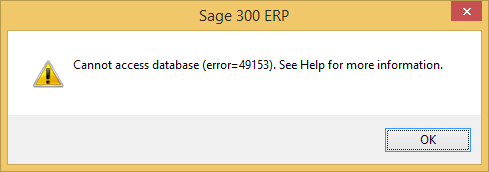
Why does Sage 300 unable to connect to database error 49153 occur?
Error 49153 occurs when Sage 300 fails to establish a working session with SQL Server, meaning the application cannot send or receive data from the database.
This usually happens because one or more of the following conditions exist:
- SQL Server services stop running on the host machine and block database access.
- Network connection drops between the workstation and server, interrupting data transfer.
- The database setup contains the wrong server name or login details and breaks the connection.
- Firewall settings block required ports and prevent SQL Server communication with Sage 300.
- TCP/IP or Named Pipes remain disabled and stop the system from establishing a connection.
- The server name entered in Sage 300 may be incorrect, causing a server not found message when the application tries to locate SQL Server.
How to fix Sage 300 cannot connect to database error 49153 (Step-by-Step)
Applying these solutions will re-establish the connection between your ERP software and the SQL database. These steps verify service availability and clear communication paths to resolve the Sage 300 cannot connect to database error 49153.
Step 1: Run Sage 300 as Administrator
Limited permissions may block database utilities.
- Close Sage 300
- Right-click Sage shortcut
- Select Run as Administrator
Step 2: Verify SQL Server Services
Confirming that the database engine is active is the priority. If the SQL service is not running, Sage 300 cannot connect to the company database and error 49153 appears.
- Log in to the server where SQL Server resides.
- Open the Services console by typing services.msc in the Run dialog.
- Locate SQL Server (Instance Name) and SQL Server Browser.
- Right-click each service and select Start if it is not running.
- Set the Startup Type to Automatic to ensure they launch after a system reboot.
Step 3: Configure SQL Server Network Protocols
Sage 300 requires specific protocols to transmit data across a network. Enabling these settings ensures the server listens for incoming workstation requests.
- Open SQL Server Configuration Manager on the server.
- Navigate to SQL Server Network Configuration and select Protocols for [Your Instance].
- Ensure that both Named Pipes and TCP/IP are set to Enabled.
- If you change these settings, restart the SQL Server service to apply the updates.
Step 4: Check Firewall Settings and Ports
Security software often blocks Port 1433 or Port 1434. Opening these ports allows the software to communicate by permitting traffic flow through the network security layers.
- Access the Windows Defender Firewall with Advanced Security on the server.
- Create a new Inbound Rule for Port.
- Enter 1433, 1434 in the specific local ports field.
- Select Allow the connection and apply the rule to Domain, Private, and Public profiles.
Step 5: Test Connection via Database Setup
The Database Setup utility defines how the application connects to the data. Verifying these settings ensures that the software points to the correct server location and uses valid credentials.
An invalid database setup occurs when the wrong server name, database path, or authentication method is saved inside Sage 300.
- Go to the Sage 300 ERP program group and open Database Setup.
- Enter the administrative password.
- Select the database causing the error and click Edit.
- Verify the Server Name matches the actual SQL Server name.
- Confirm the SQL username and password are correct. Invalid credentials may trigger a login failed for user error during verification.
- Click Verify to test the connection. Successful verification indicates the error is resolved.
Step 6: Verify Client Connectivity
Sometimes the issue resides on the workstation rather than the server. Testing the DSN (Data Source Name) confirms if the client machine recognizes the server across the local area network.
If the workstation cannot detect SQL Server, you may receive an ODBC connection failed error. This usually indicates a damaged DSN, blocked network path, or incorrect server name.
- Open ODBC Data Source Administrator (32-bit) on the workstation.
- Go to the System DSN tab.
- Select the DSN used by Sage and click Configure.
- Follow the prompts to test the connection to the SQL server using your credentials.
Step 7: Recreate ODBC DSN
If DSN is damaged:
- Open ODBC Data Source Administrator
- Delete old DSN
- Recreate with correct SQL server name
Also Read: Sage 300 Web API Setup Guide for Integration & Automation
How to prevent Sage 300 error 49153 in the future?
Proactive maintenance reduces the likelihood of recurring connectivity failures. Follow these practices to maintain a healthy environment.
- Assign a static IP address to the SQL server to avoid DNS resolution issues.
- Keep SQL service account passwords fixed and prevent unexpected access or login interruptions.
- Install the latest Sage 300 ERP updates and SQL Server service packs on a regular schedule.
- Run daily database backups to protect critical data and reduce the risk of data loss.
- Check cables and switches regularly to maintain a stable and reliable network connection.
Also Read: How to Access My Companies in Sage 300?
Final Words
Resolving Sage 300 cannot connect to database error 49153 requires verifying SQL service status and ensuring network protocols remain active. By following this technical guide, you restore the vital connection between your workstation and the server. Regular maintenance of firewall settings and database configurations prevents future downtime. These structured steps allow you to maintain a stable ERP environment, ensuring your financial data remains accessible and your business operations continue without interruption.
Frequently Asked Questions:
Why does Sage 300 show error 49153 after a server restart?
This usually happens because the SQL Server services are set to “Manual” instead of “Automatic.” When the server reboots, the database engine does not start automatically, leaving Sage 300 unable to locate the data.
Does this error mean my data is corrupted?
No, error 49153 is a connectivity error, not a data integrity error. It indicates that the application cannot communicate with the database. Your data remains safe on the SQL Server, but the connection path is blocked.
Can I fix error 49153 by reinstalling Sage 300?
Reinstalling the application is rarely necessary. The issue usually exists within the SQL Server configuration or the network firewall. Follow the service and protocol checks before considering a reinstallation.
What port does Sage 300 use for SQL connectivity?
By default, SQL Server uses TCP Port 1433. The SQL Browser service uses UDP Port 1434. You must ensure both are open in your server firewall to allow workstation access.
Should I use the server name or IP address in Database Setup?
Using the server name is standard; however, if you have DNS resolution problems, using the server’s static IP address can sometimes bypass connection problems.
Why does Sage 300 show server not found?
This usually happens when the wrong server name is entered in Database Setup, DNS resolution fails, or the SQL server is offline.
Can firewall cause Sage 300 database error 49153?
Yes. If ports 1433 or 1434 are blocked, Sage cannot reach SQL Server.
 ChatGPT
 Perplxicity
 Claude
 Gemini
 Gork
Gork
