
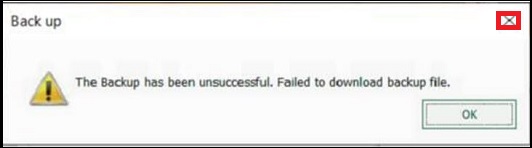
Fix Sage 50 Backup Error: Attempt to Create Cloud Backup Failed

If you’re running into the ‘Sage 50 Backup Error: Attempt to create Cloud Backup Failed’ while using Sage 50, you’re not alone. It’s a common issue that can stop you from saving your important data to the cloud. Don’t worry—we’ll break down the main reasons this error happens and guide you through simple steps to fix it.
User Navigation
Accounting Professionals & Specialized Experts
Want quick help from accounting software experts? Get in touch with our team members who can install and configure your software for you. Proficient in fixing technical issues, they can help you quickly get back to work whenever you encounter an error in Sage software. Our team is available 24/7 365 days to assist you. To get in touch.
Causes Behind Sage 50 Cloud Backup Failed Error
Here is the some main reasons why Sage 50 cloud backup failed error occurs:
- The Office 365 has been deleted by mistake.
- Files or folders might be corrupted, hidden, or even missing, which could interfere with the backup process.
- A Damaged WMI(Windows Management Instrumentation) can cause backup issues and lead to errors like this one..
- Special characters present in the company name.
- The setting up of the Cloud backup is not valid.
- The Data folder has not been cleaned.
Also Read: Fix Sage 50 Output Error
Solution for Sage 50 Backup Error: Attempt to Create Cloud Backup Failed
Now, let’s walk through a few solutions to help you fix this error. Depending on the specific cause, the steps might vary.
Before you start
- Ensure that your Microsoft 365 account is activated.
Run as administrator
- Right-click the Sage 50 desktop icon and choose Run as administrator.
- Open your company file and create a Cloud Backup.
- When the backup is successful, update the Windows permissions on your working directory.
- For further help, contact your network technician.
Remove the Token cache file
- Navigate to C:\Users[your user]\AppData\Roaming\Sage\AAD.
- Enable hidden items by clicking View > Hidden items if the AppData folder is not visible.
- Delete the file with the .tokencache extension from this location.
- Next, go to C:\ProgramData\Sage\Sage Data Exchange and delete the file SageDataExchange.sqlite.
- Once done, open your company file and create a Cloud Backup.
Test the sample company
- The Sample Company can be accessed via the welcome page or by:
C:\Users\Public\Documents\Simply Accounting[your edition]\Samdata[your version of Sage 50] – Universl.sai. - Upload the company to Microsoft 365 using your user account.
- Create a Cloud Backup.
- If the backup uploads successfully, proceed with restarting the Connection Manager.
- If the same error appears, it is likely an environment-related issue. Contact your IT professional for further assistance.
Restart the Connection Manager
- Close Sage 50 Accounting.
- Restart the Connection Manager.
Test the Automatic Backup
- Go to Setup > Settings > Company > Backup.
- In the Scheduled Backup section, check Automatically back up this file.
- Choose Create local backup, then Browse and select OneDrive as the location.
Check your internet upload speed
- Open the Internet Speed Test Tool and click Start.
- Wait for both the Download and Upload tests to finish.
- If the upload speed is greater than 2 Mbps, continue to the next steps to check your backup size.
- If the upload speed is less than 2 Mbps, contact your Internet provider or IT professional for assistance.
Check the size of your backup
- Create a local backup.
- Right-click the backup file and choose Properties.
Disable the Firewall and antivirus
Turn Off Windows Firewall
- Open Control Panel > Windows Firewall.
- From the left menu, select Turn Windows Firewall On or Off.
- Set all firewall options to Off.
Turn Off Windows Defenders Real-Time Protection
- In the Windows search bar, type Settings and select it from the results.
- Go to Update & Security, then click Windows Defender from the left menu.
- Turn Real-Time Protection Off.
- Try creating a Cloud Backup.
- If successful, consult your IT professional or check related resources to configure the settings properly. (Remember to turn your security program back ON.)
- If not successful, contact Customer Support.
3rd Party Security Program
Contact your program provider for help in disabling your security software.
Attempt to create a Cloud Backup.
- If successful, consult your Security Program Provider or network technician to set the proper configuration. (Remember to turn your security program back ON.)
- If not successful, contact Customer Support.
Final Words
By following these steps, you should be able to fix the “Attempt to create Cloud Backup Failed” error in Sage 50. If the issue persists, it’s a good idea to contact a professional for further assistance or visit our website at accountingadvice.co.
Frequently Asked Questions:
What is the reason for the Sage 50 Backup to not be working as expected?
The reason could be that the location in which you are trying to back-up your files and data has reached the complete storage capacity. For this you need to clear some space on the drive or to specify another location for your backup to take place. Finally, the other reason can also be that you do not have the required permissions to back up to the location as specified.
How can you backup the Sage over to the Cloud?
In order to do so, you need to follow the below steps:
1. Start by launching the Sage Provisioning Portal and log in.
2. Next Open your site.
3. Now Expand the Databases section.
4. Next select the Backup from within the Actions column. .
5. Finally Confirm that you wish to back up the company.
How can I backup Sage onto Google Drive?
Go to the navigation bar, next click on Settings and within the Backup location, click the arrow, next select the location you would like to back up to. The Backup Manager automatically detects any OneDrive, Google Drive or Dropbox folders located within your data server. Finally, click the Edit folder, and enter the path you need.

 ChatGPT
 Perplxicity
 Claude
 Gemini
 Gork
Gork
