
Fix Sage .Net Error

Users often experience the Sage .Net Error while opening the Sage software. This error message appears in the Event Viewer. If you are also facing this issue, you have landed in the right place. In this blog, we will look at some easy remedies to fix this issue. Simply go through this blog, perform the steps mentioned sequentially and keep your system free from this error!
User Navigation
Accounting Professionals & Specialized Experts
Want quick help from accounting software experts? Get in touch with our team members who can install and configure your software for you. Proficient in fixing technical issues, they can help you quickly get back to work whenever you encounter an error in Sage software. Our team is available 24/7 365 days to assist you. To get in touch.
Here we go!
What Causes of Sage .Net Error?
Although many technical reasons may contribute to this error, we will list the most prominent ones here –
- Damaged program path.
- Damaged data path.
- Damaged or missing Microsoft .NET Framework.
- Damaged shared folder.
- Computers are on different networks.
Also Read: How to Fix Sage 50 Network Issues?
Methods to Fix Sage .Net Error
Here, we will show multiple methods to fix this issue –
Method 1: Install the Latest Windows Updates
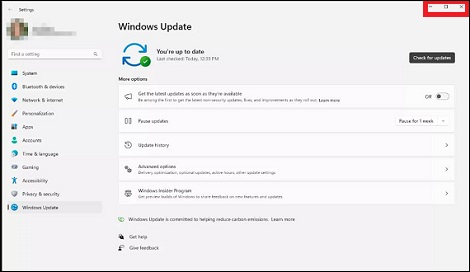
Here are the steps to follow :-
- Press Windows+R together.
- The Run menu will appear.
- On the textbox, type Control.
- Click OK to proceed.
- Now click on Windows Update.
- Choose Check for updates.
- Follow the on-screen prompts.
- Once the latest updates are installed, try to open Sage and check for errors.
- If the error message is still there, proceed to the next method.
Method 2: Event Viewer for PeachW States “the process was terminated due to an Unhandled Exception”
In case the Event Viewer identifies a specific fault, as an Unhandled Exception with the faulting application name indicated as Peachw.exe, then allow the following steps to be applied:
- Delete all the files (not folders) in the program path
This may resolve the issue with corrupted files on a program level. You will have to identify path of your Sage (usually on C: Program Files(x86) SagePeachtree or alike). Caution must be exercised not to delete an entire folder, and instead only specific files within the folder.
- Do a Repair of the Program
- Click on Control Panel> Programs and Features.
- If it’s a Sage software from that list, right-click on it and select Change or Repair.
- Repairs have to be done following the on-screen instructions.
- Reboot your computer and try Sage.
- Install to a Different Program Path (if the error persists)
If the repair fails, it could indicate that the program’s installation is deeply corrupted. In extreme cases, you’ll have to fully uninstall Sage—*make sure you back up your data first!*—then after that, reinstall it in a new program path.
Method 3: Create New Data Path
An incorrect or unavailable data path often triggers Sage errors. Establishing a new data path enables you to determine whether the problem rests with your company data or with the program itself.
- Locate your existing data path
- Now open Sage: Help—About—System Information—Directories—Data Directory.
- If Sage won’t launch: Many users can locate the data path within a non-extension “Company” file stored in a path such as C:\ProgramData\Sage\Accounts\[YearNumber]. With Notepad, open the “Company” file to access its data path(s).
- Create a new folder in a separate location (e.g., C:\SageData_New).
- Move the company data files (generally the folder with ACCDATA and its accompanying folders—frequently titled Company.000 or similar) from your previous data path to this newly created one.
- Update Sage to use the new data path
- Once more, locate the “Company” file (without an extension) in your Sage program directory.
- Open it with Notepad.
- Modify this file’s entry so it directs to the new data path you have just created.
- Save the “Company” file and then restart Sage.
- Alternatively, use the Database Repair Utility (DBRU)
Some Sage editions provide a DBRU that helps set up a new data path and fix associated problems. Visit Sage’s official support resources to acquire instructions on using this tool that apply directly to your version.
Method 4: If the ‘Unhandled Exception Error’ Message is Displayed in the Event Viewer
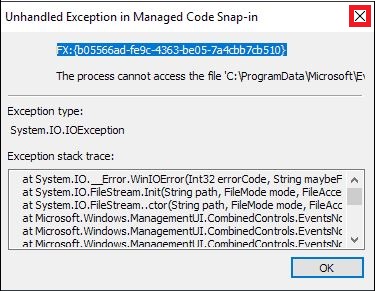
Here are the steps to follow :-
- Remove all the files from the program path ( caution: do not remove the folders).
- Run a repair on the program.
- If the error message still occurs in the Event Viewer, install a different program path.
Method 5: If the ‘Managed Exception Error’ Message is Displayed in the Event Viewer
Here are the steps to follow :-
- Press Windows+R together.
- The Run menu will appear.
- On the textbox, type Control.
- Click OK to proceed.
- Select Programs and Features.
- Click on ‘Turn Windows features on or off’.
- Click on ‘Allow’ if prompted whether you want to allow the changes.
- Clear the checkbox next to ‘Microsoft .NET Framework 3.5.1’.
- Click OK.
- Wait till the changes are applied.
- If prompted, restart the computer.
- Press Windows+R together.
- The Run menu will appear.
- On the textbox, type Control.
- Click OK to proceed.
- Select Programs and Features.
- Click on ‘Turn Windows features on or off’.
- Click on ‘Allow’ if prompted whether you want to allow the changes.
- Double-click on the tab Microsoft .NET Framework 3.5.1.
- Check the ‘ Windows Communication Foundation HTTP Activation’ box’.
- Next, check the ‘Windows Communication Foundation Non-HTTP Activation’ box.
- Click OK.
- Restart the computer.
Method 6: Run SFC/Scannow
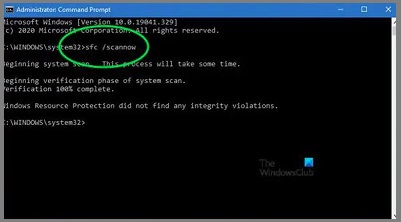
Please follow the steps below-
- On your keyboard, press Win+R.
- The Run menu will appear.
- Type CMD and press OK.
- In the Command Prompt, write SFC /Scannow.
- Wait till the process gets completed.
- Try to open Sage and check if you are getting the error message.
Method 7: Run the Program as an Administrator
- A frequent reason for applications failing to start or for unhandled exceptions occurring is due to permissions problems.
- Start Sage with administrator privileges by right-clicking the shortcut and choosing the Run as administrator option.
- To run Sage with administrator privileges, choose Run as administrator.
- If Sage launches successfully, you might wish to make the shortcut run with administrator privileges by default:
- On the Sage shortcut, click the right mouse button.
- Go to Properties.
- Go to the Compatibility tab.
- Select “Run this program as an administrator” by checking the box.
- Press Apply, then click OK.
Also Read: Fix Sage .NET Runtime Error 1026
Final Words
We hope the above discussion would help you resolve the Sage .Net Error. If the error still exists or you are having any queries related to Sage 50, we would advise you to get in touch with the experts.
Frequently Asked Questions:
How can a User Fix Sage Error?
To do so, you need to:
1. To begin an automatic repair of your data, you need to click Run Repair.
NOTE: In case you use Remote Data Access within Sage 50 Accounts v27, the repair should be run at the main site.
2. To Back up the data, click OK, next click on OK. In case the errors are repaired, the Success window will be displayed.
How can a User Fix the .NET Framework Error?
To do so, you need to:
1. Start by Pressing Win + R to open Run.
2. Next Type control and click OK to open the Control Panel.
3. Now, click on Programs and then click on Programs and Features.
4. Go to the left pane, now click on Turn Windows features On or Off.
5. Now, uncheck. NET Framework 3.5.
6. Click OK.
Where is the Sage Error log Located?
You can access this window by using one of the following methods:
1. Start by Selecting the Library Master Reports menu.
2. Next, click on the Activity Log.
3. Now Select eBusiness Manager Main menu.
4. Next, go to the Web Error Log.
How can one Fix the Errors on Sage?
This can be done with the help of the Automatic Repair.
1. In order to begin an automatic repair of your data you need to click on Run repair.
Note: In case you are using Remote Data Access within Sage 50 Accounts v27, the repair should be run within the main site.
2. In order to back up the data, click OK then click OK once again. In case the errors have been repaired, the Success window will be displayed.
How can one Fix the (.NET) Installation Error?
In case any . NET Framework uninstall or install fails or errors, you need to try and uninstall it, then use Microsoft . NET Framework Repair Tool to remove it. If this tool also fails to correct the uninstall or install problem, you are required to contact your local IT support for assistance.
How can one Run the (.NET) Repair?
In order to do this, you need to:
1. Start by selecting the files to download and click Next:
2. Now, Run the NetFxRepairTool.exe file.
3. Next, You will observe the changes the tool recommends implementing.
4. Once the changes have been made, do not click Finish but click Next
within the final step, click Finish.
5. Finally Restart your machine.

 ChatGPT
 Perplxicity
 Claude
 Gemini
 Gork
Gork
