
Fix Sage 50 .NET Framework Runtime Error 1026

Sage 50 .NET Framework Runtime Error 1026 occurs when Windows is missing critical .NET files, registry entries are corrupted, or user permissions are misconfigured in Sage 50 accounting software. This guide provides five verified methods to resolve Error 1026 on Windows 10 and Windows 11 systems.
User Navigation
Here we go!
What Causes the Sage 50 .NET Framework Error 1026?
Sage 50 .NET Framework Error 1026 (also logged as Event ID 1026 in Windows Event Viewer) indicates a CLR runtime exception or faulting module within Sage 50 Accounting. Common triggers include missing .NET assemblies, corrupted application manifests, or Windows registry corruption affecting the Common Language Runtime.
- Windows is missing some files
- Incorrect user input
- Accidental deletion of files from the Registry that may lead to system malfunctions.
If you encounter API-specific errors (e.g., connection failures), see our guide to Sage .NET API Errors.
Prerequiresites Before Fixing Sage 50 .Net Runtime Error 1026
✓ Verify you are running Sage 50 2020 or newer
✓ Confirm Windows 10 (version 1909+) or Windows 11
✓ Ensure local administrator account access
✓ Back up Sage company data files (.SAJ, .SAI) to external location
✓ Close all Sage 50 and Sage-related processes in Task Manager’
Method to Resolve the Sage 50 .NET Framework Runtime Error 1026
Here, we will discuss multiple methods to fix the .NET Framework Error 1026-
Method 1: Perform a Clean Boot
Use this method if Third-party services or startup programs conflict with .NET. Expected result Isolates the conflict by disabling non-essential services.
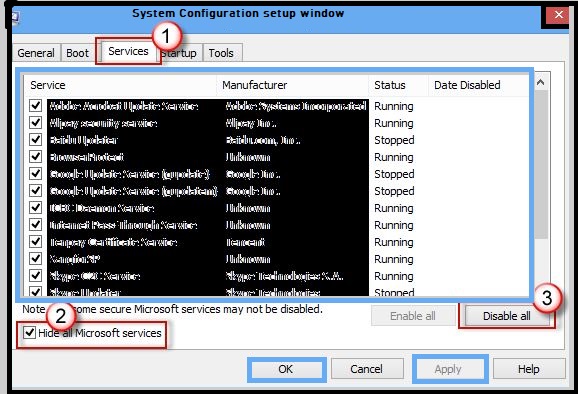
- Press Windows + R
- Type msconfig on the search box
- Hit Enter
- Go to the Services section
- Mark the checkbox named Hide all Microsoft services
- Choose Disable all
- Go to the Startup tab
- Click on Open Task Manager
- Do a right-click on each non-Windows entry and select Disable
- Close the Task Manager
- Go to the Boot section
- Tick the Safe boot option
- Click on Apply
- Click OK to continue
- Restart your computer
- If you are still getting the issue, proceed to the next method
Method 2: Run both the SFC and DISM Scans
Use this method if System files are corrupted. Expected result Repairs missing or damaged Windows components and .NET assemblies.
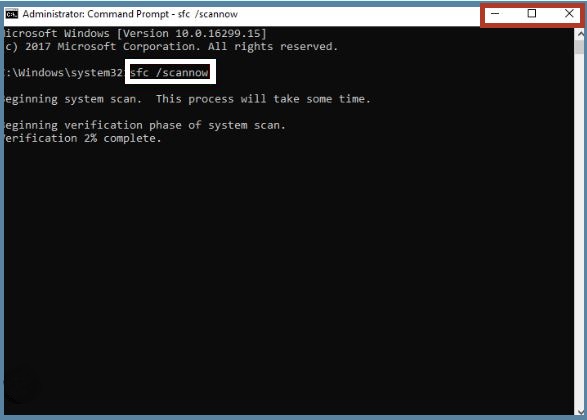
- Log in to the system as Administrator
- Open the Command Prompt
- Type the command sfc /scannow
- Press Enter
- Reboot the system
- If SFC returns an error, run DISM scans. Open Command Prompt as Administrator and execute each command sequentially, pressing Enter after each:
- DISM /Online /Cleanup-Image /ScanHealth
- DISM /Online /Cleanup-Image /CheckHealth
- DISM /Online /Cleanup-Image /RestoreHealth
- Similar .NET installation failures like Sage Error 5100 can also be resolved with these scans.
- Please Note: Before running the above commands, ensure that your hard disk is not damaged. You can have the check done from the Administrative Command Prompt, as given below-
- If you are using a hard disk drive as your main driver and to install your operating system, use the f command chkdsk c: /f and hit Enter
- If you are using SSD, use this command chkdsk c: /f /r /x
- If you get an error message, type Y and press Enter
- Restart your device
Also Read : Sage Error 5100 “Microsoft .NET installation failure
Method 3: Disable & Enable the .NET Framework
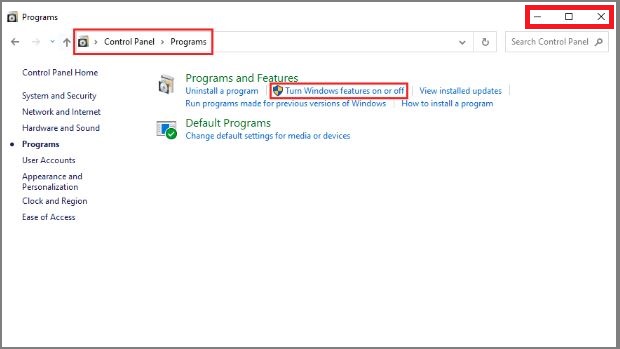
- In the Windows search bar, write Turn Windows features on or off
- Press Enter
- The Windows Features window will open up
- Click the + icon near .NET Framework 4.7 Advance Services in order to expand the menu
- Uncheck all the options listed here
- Uninstall the framework
- Restart your system
- Reinstall the .NET Framework
- Click on the Windows Features window
- Click on the + icon near .NET Framework 4.7 Advance Services again
- Check all the options
- Restart the system again
Method 4: Run Microsoft .NET Framework Repair Tool
- On your browser, visit the Microsoft .NET Framework Repair tool download page’ with ‘Download the official Microsoft .NET Framework Repair Tool.
- Click on the Download button
- Checkmark the NetFxRepairTool.exe box
- Uncheck everything else and click Next
- Double-click the installation file you downloaded
- Click Yes when prompted
- Follow the on-screen instructions
- Checkmark the ‘I have read and accepted the license terms’ box
- Click on Next
- Scanning of the .NET dependencies will commence
- Wait till the process is complete
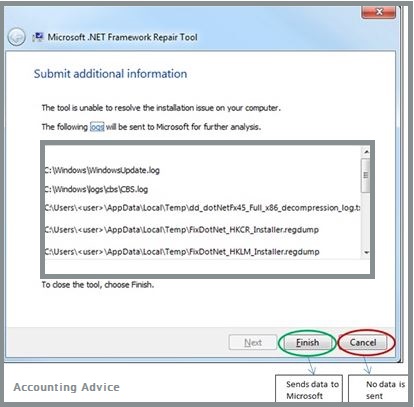
- Click Next to apply the repair strategy recommended by the utility
- Click Finish
- Restart your system
Method 5: Rename the File Launchpad.exe
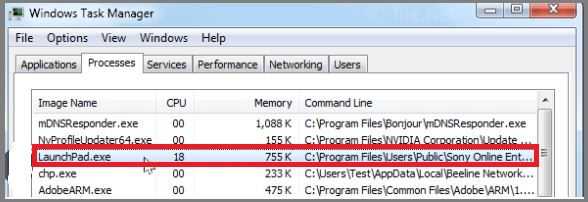
- Log into the system as an administrator
- Browse to the root directory of your C drive
- Right-click, on the Users folder
- Select Properties
- Click on the Security tab
- From the menu, click the Administrators group
- Click on Edit
- On the Permissions for Users window, click on the Administrators tab
- Check the Allow box linked with Full control
- Click Apply to save the changes made
- Make sure to assign the Full Control permissions to the Users folder
- Return to File Explorer
- Click on the View tab
- Checkmark the Hidden Items box
- From File Explorer, browse to the location:
- C:\\Users\\[username]\\AppData\\Local\\Microsoft_Corporation
- Locate the executable file named Launchpad_XXX.exe (XXX can be any random characters)
- Rename it to something different. You can add the .old extension at the end of the name. This will make Windows ignore this file and create a new equivalent, devoid of any issues
- Open Event Viewer
- Check if the problem has been fixed now
Final Words
We hope the steps mentioned above would help you fix the Sage 50 .NET Runtime Error 1026. In case you are experiencing any difficulties in carrying out the above steps, we would recommend you to take help from some experienced Sage professionals .
Accounting Professionals & Specialized Experts
Want quick help from accounting software experts? Get in touch with our team members who can install and configure your software for you. Proficient in fixing technical issues, they can help you quickly get back to work whenever you encounter an error in Sage software. Our team is available 24/7 365 days to assist you. To get in touch.
Frequently Asked Questions:
To Fix the Sage 50 .Net Error, I am asked to Completely Uninstall the Microsoft .Net Framework from my Windows 10 System. How to do this?
You are not allowed to uninstall the framework from Windows 10 completely. At best, you can force an update. Here are the steps to follow-
1. Go to Control Panel
2. Navigate to Programs and Features
3. Click on ‘Turn Windows features on or off’
4. Now, click the + symbol next to .NET framework 4.6 Advanced Services
5. Next, uncheck all sub-options under .NET Framework 4.6 Advanced Services.
6. Click OK and restart.
7. Re-enable the framework by repeating steps 1–4 and checking all boxes.
8. Click on the tab named ‘Turn Windows features on/ off’
9. Click on the + symbol near .NET framework 4.6 Advanced Services
10. Uncheck the box adjacent to ASP .NET 4.6.
11. Click OK
12. Now, Windows will download the latest update of the Microsoft .NET framework.
13. After the update is successful, restart the computer.
14. If not, get in touch with an IT personnel.
What causes the Sage 50 .Net Error?
Even though many technical causes may lead to the Sage .net error, here we would list some of these-
1. Damaged program path
2. Damaged data path
3. Damaged or missing Microsoft .NET Framework
4. Damaged shared folder
5. Computers are on different networks
To Fix Sage the Sage 50 .Net Error, I am asked to Install the Latest Windows Updates. How to do this?
Here are the steps to Install the latest windows updates-
1. Press Windows+R together
2. The Run menu will appear
3. On the textbox, type Control
4. Click OK to proceed
5. Now click on Windows Update
7. Choose Check for updates
8. Follow the on-screen prompts
9. Once you have installed the latest updates, open Sage and check for errors

 ChatGPT
 Perplxicity
 Claude
 Gemini
 Gork
Gork
