
Fix Sage 50 File System Error Number 3
Updated On: August 13, 2025 12:00 pm

The file system error message happens because of many factors. Sage Error code 3 is one of them also known as a fatal error. The primary reasons might be miscommunication between workstations and servers, network glitches, connection barriers, and more. The below article is rounded up with the quick fixation of Sage 50 file system error number 3.
User Navigation
Accounting Professionals & Specialized Experts
Want quick help from accounting software experts? Get in touch with our team members who can install, configure and configure your software for you. Proficient in fixing technical issues, they can help you quickly get back to work whenever you encounter an error in Sage software. Our team is available 24/7 365 days to assist you. To get in touch.
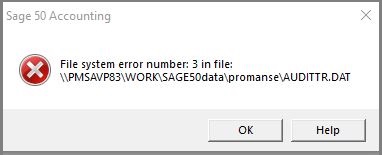
Causes of the Sage 50 File System Error Number 3
- The w3dbsmgr.exe process ends while running Sage 50-US Edition.
- When Actian Database pauses or stopped.
- Network connection drops in a wireless environment.
- Wrong security permissions or set sharing.
- Issue after service release installation.
- The system goes to sleep when there is an active application.
- Corrupted userpref.dat file.
- Not enabled Server connection manager.
- Not-supportable.NET framework.
- Networking glitches.
- Connection errors to remote Sage service host system.
- Network timeout in Server or host computer.
Also Read: Sage 50 File System Error 3 or 95
How to Fix Sage 50 File System Error Message 3?
Here some methods to fix this issue :-
Method 1: Resolve the Actian/Pervasive Error using Restart Method
The file system issue can be fixed by restarting the Pervasive/Actian service. Here is the list of steps to resolve the file system error message 3 :-
- First of all launch the task manager.
- Before proceeding with the service settings modification ensure that you have closed the Sage 50. application from all the computer.
- Find a blank field on the taskbar.
- Now give a right-click on it.
- Select Task Manager window or Alternately press Ctrl + Alt + Delete keys on the keyboard altogether.
- Hit Start Task Manager window.
- Give a click on the option which says details.
- Search w3dbsmgr.exe.
- Hit on the specific process.
- Click on the End Task button at the bottom of the window.
- Search at the window top the button labeled services, find by name, and then look for psqlWGE.
- Perform a right-click on service named PsqlWGE.
- Click Start tab.
Method 2: Verify the workstation IP Address
- First of all open the Control Panel window.
- Hit on the tab named Network and Internet.
- Click option labeled Change adapter settings appears on the left corner of the window
- Right-click on it.
- Choose Properties button.
- Select Internet Protocol version 4.
- Hit on the Properties tab.
- Click on the Advanced option.
- Choose the option named DNS.
- Now delete the irrelevant entries from the field labeled Append these DNS suffixes/Change the settings to Connection-specific and Append primary suffixes.
- Check the field labeled Append parent suffixes of the primary DNS suffix.
- Restart the computer named DNS Client.
Method 3: Fix Connection Loss Error
Here are the steps to resolve the network connectivity errors :-
- Check the rebooted server.
- Plugin the Network router.
- Verify the Network Interface Card is in a hibernation mode or not.
- Corrupted NIC sending junk information.
- Damaged Network cable.
- Wireless networks errors.
- Check VPNs.
- There may be other network system interruption.
- Wrong or weak WiFi signal error.
Method 4: Check the Error in Services
- Give a click on the Start tab
- Select Run button
- It will appear a dialog window
- Write msconfig and then press an Enter key
- It will display a prompt named system configuration utility page
- You need to select the option which says the startup
- Click Disable all tab
- Choose OK button
- Select Restart option
- Backup the computer
- There will prompt a message
- You need to give a click on the OK button
- Next, run the Sage system verifier
Method 5: Resolve the Damaged File
- In case the file system error is because of the corrupted file then you need to provide a new name to the file Or Run repair tool at the server
- Search the program and data path with the following steps:
- Firstly open the Sage 50-US edition
- Select the File option
- Hit Open company tab
- Next drag the page corner to display the full directory
- It will appear the data path as the directory minus the company name truncated spell
- Now you need to follow the instructions to find the program path of the file:
- First of all, give a click on the icon labeled sage 50
- Next, give a right-click
- Select the properties to tab on the window
- It will display the highlighted path appears in blue color, minus peachw.exe named as the program path
- If the choose the open file location then it will appear the program path
- Verify the data directory to verify the issue. Here is the list of steps:
- Now open the page labeled File Explorer.
- Search the box which says Search.
- Select the button which as All Files & Folders.
- Enter COMPANY.DAT.
- Make sure that View adjusts as Detail button.
- It will display the search location in the column which says Folder.
- Now copy the company directories data path from the current location.
- Next, paste it into the data path directory.
- Delete the file reference in the data folder named company.
Method 6: Set the Windows to Prioritize IPv4 Address Across IPv6
- Search the system notification tray.
- Hit on the icon named connection and perform a right-click on it.
- Select Open Network and Sharing Center window.
- It will appear the NSC interface.
- Now give a click on the connection link you require to apply IPv4.
- It will display the window named connection status dialog.
- Select Properties in the left-hand corner.
- Open the properties new connection.
- Next, scroll down the list until you discover Internet Protocol version 6.
- Give unselect the field.
- Click on the OK button.
- Now close the open tab.
- It will display IPv4 connection preferences.
Method 7: Resolve the windows Power Plan Settings Issues
There needs to be a high-performance power plan. Therefore verify the power plan of windows for a single computer with the following instructions:
- Choose Start tab.
- Select Run to appears Run Window.
- Now fill the Regedit.
- Select OK option.
- Search and hit on the following registry subkey: HKEY_LOCAL_MACHINE\SYSTEM\CurrentControlSet\Control\Class\{4D36E972-E325-11CE-BFC1-08002bE10318}\DeviceNumber.
- Hit PnPCapabilities option.
- Find the Edit tab, select Modify button.
- Click on the field labeled Value data, write 24 and then select OK.
- Find File tab.
- Select Edit button.
- On the File option, give a click on the Exit button.
Also Read: Sage 50 File System Error 3111
Conclusion!
Here the article completes! Hopefully, the information is helpful. If still, you face the issue then get in touch with the expert’s team. Use a Sage 50 live chat, drop an email or phone number to resolve all your issues for better assistance.
Frequently Asked Questions:
How would I show File Extensions & hidden Folders, Files, and Drives?
1. Initially open control panel window.
2. Search the file explorer button.
3. Hit “show hidden files and folders”.
4. Select the option which says “View” at the top of the window.
5. Under Advanced Settings now unselect button which says “Hide extensions for known file types”.
6. Hit the Hidden files and folders button.
7. Select option labeled show hidden files and folder
How can I Make a Sage 50 Backup?
1. Initially log in into the data file you require to backup
2. Click File button
3. Select Backup tab
4. It will appear a Page labeled Sage 50 Accounting Backup window
5. Enter the file name & date
6. Select the folder where you require saving the backup file
7. Ensure that you failed to embed the file location named.SAJ folder in a file named Backup
8. Do not overwrite the existing backup file
9. Click OK to proceed with the backup process.
How would I Fix the Sage 50 Installation?
1. Hit Start button.
2. It will display a Search dialog box.
3. Enter appwiz.cpl.
4. Hit Enter.
5. Choose Programs & Features button and give a right-click on the tab named Sage 50 Accounting.
6. Click on the Change option.
7. Hit Repair tab and then choose Next tab.
8. It will run repair.
9. Hit Finish button.
10. Install any application updates as required.
 ChatGPT
 Perplxicity
 Claude
 Gemini
 Gork
Gork
