
How to Fix Sage 50 “An Error Has Occurred in the Script” Error
Updated On: February 13, 2026 9:13 am

The Sage 50 Script Error “An Error Has Occurred in the Script” appears when a background script fails to run during normal software use. This issue occurs from misconfigured Internet Explorer settings, as Sage 50 relies on these components for its internal web-based features. Other frequent triggers include corrupted temporary internet files, restrictive firewall permissions, or outdated software versions that conflict with recent Windows updates.
User Navigation
When this error occurs, users often experience unresponsive windows, blank reports, or interrupted online services, significantly slowing down productivity. Before attempting any fixes, it is essential to log in as an administrator, close all background tasks, and secure a data backup.
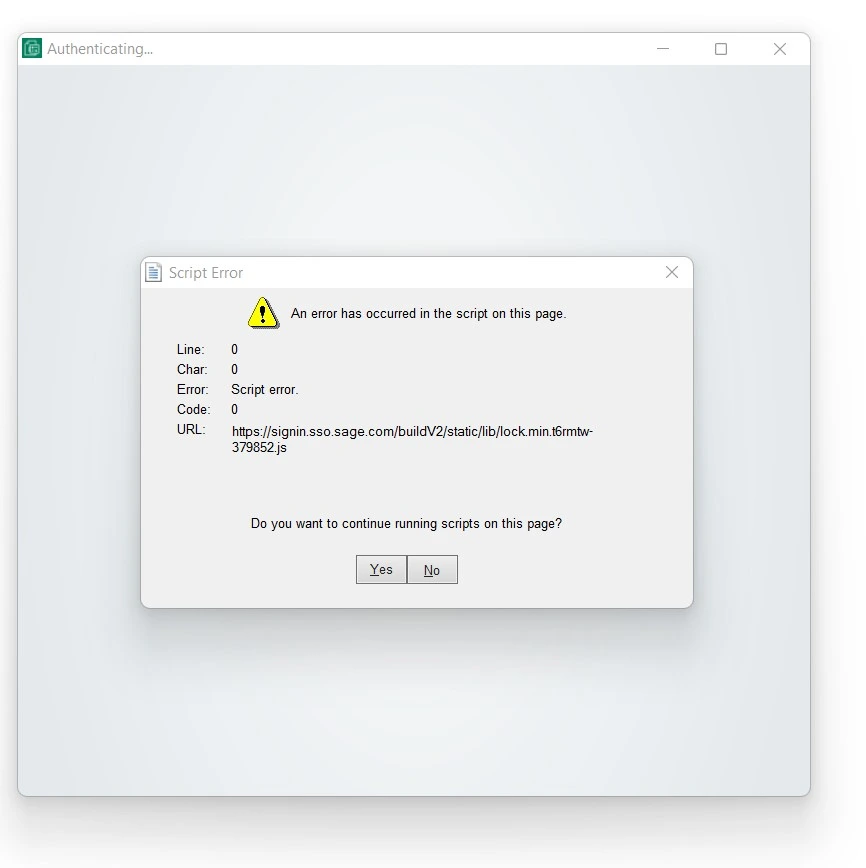
This guide explains how to fix the Sage 50 “An Error Has Occurred in the Script” error, including causes, symptoms, and verified solutions.
Accounting Professionals & Specialized Experts
Want quick help from accounting software experts? Get in touch with our team members who can install, configure and configure your software for you. Proficient in fixing technical issues, they can help you quickly get back to work whenever you encounter an error in Sage software. Our team is available 24/7 365 days to assist you. To get in touch.
11 Proven methods to fix Sage 50 script error
Follow the solutions below in sequence to fix the Sage 50 ‘An Error Has Occurred in the Script’ error:
Method 01: Reset Internet Explorer Settings
Restoring default browser configurations eliminates script conflicts within the core components Sage 50 uses for its interface. Here are the steps to reset Explorer settings:
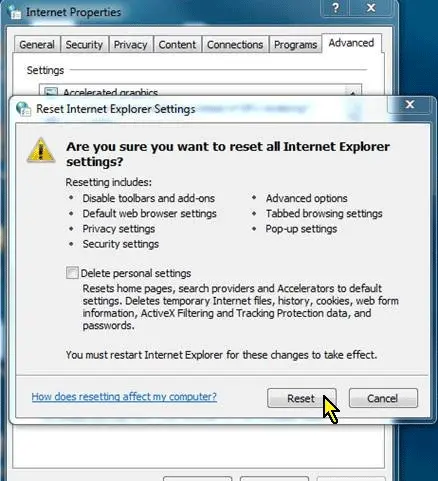
- Simply, press Windows + R, type inetcpl.cpl, and press Enter.
- Now, move further and open the Advanced tab.
- After that, click Reset under Reset Internet Explorer settings.
- Next, select Delete personal settings.
- Then, click Reset and restart the computer.
- Open Sage 50 and check if the error disappears.
Method 02: Reinstall Sage 50 to Fix Sage 50 Script Error
A fresh installation ensures all program files are intact and replaces any corrupted data, causing script execution failures. Here are the steps:
- First of all, back up your company files.
- Open Control Panel>>Programs and Features.
- Select Sage 50 and click Uninstall.
- After that, restart your computer.
- Download the latest Sage 50 installer from the official site.
- Install Sage 50 and apply all updates.
- Restore your company files if needed and check the software.
Pro Tip: When you reinstall Sage 50, it makes sure that all program files are intact and scripts can run without errors.
Also Read: How to Fix Sage 50 Installation Error 1935?
Method 03: Check Firewall and Antivirus Settings
Adjusting security permissions prevents your firewall from mistakenly blocking essential script-related services required by Sage 50. Check out the steps to verify these settings:
- Open your Firewall or Antivirus program.
- Add Sage 50 as an exception or allow it through the firewall.
- Ensure that ports used by Sage 50 (typically 55300–55399) are open.
- At last, save the changes and restart Sage 50.
Also Read: How to Fix Sage 50 Firewall Error?
Method 04: Clear Temporary Internet Files
Remove cached data and cookies, as deleting corrupted temporary files often prevents scripts from loading correctly. Follow these steps:
- To initiate the process, open Internet Explorer.
- Thereafter, go to Tools >> Internet Options.
- Under the General tab, find Browsing History and click Delete.
- Check Temporary Internet files, website files and Cookies and website data.
- Click Delete and wait for the process to finish. Restart Sage 50.
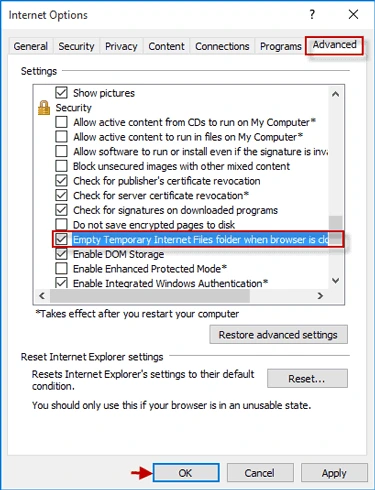
The above steps will clear unwanted files that may prevent scripts from running correctly.
Method 05: Update Sage 50 and Windows
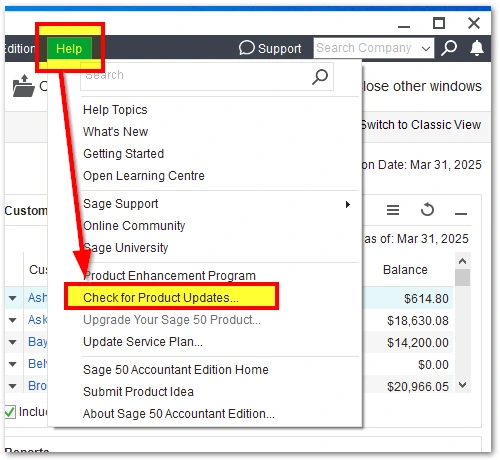
Synchronize your software and OS versions, because it resolves compatibility bugs and applies critical patches that fix known script errors.
- Open Sage 50 and go to Help>>Check for Updates.
- Download and install any available Sage 50 updates.
- After that, restart your computer.
- Check Windows Update in Settings and install all pending updates.
- Lastly, restart Sage 50 after completing updates.
Also Read: How to Fix Sage 50 not Opening after Windows Update?
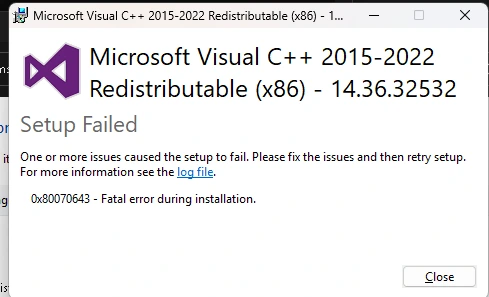
Method 06: Repair Microsoft Visual C++ and .NET Framework
Fix these foundational Windows components to ensure that the JavaScript and system libraries Sage 50 relies on are functioning properly. Follow these steps for Sage 50 JavaScript Error Solution:
- Open Control Panel>>Programs and Features.
- Locate Microsoft Visual C++ Redistributable and select Repair.
- Now, repeat for all installed versions.
- Next, locate Microsoft .NET Framework and select Repair.
- After that, restart your computer.
- Open Sage 50 and check if the error is resolved.
Also Read: How Fix Sage .NET Runtime Error 1026?
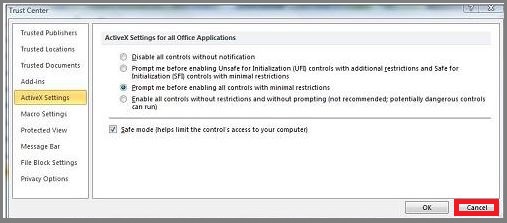
Method 7: Turn on ActiveX Controls
Follow the below-given steps:
- Locate Internet Explorer, choose Tools, and then Hit on Internet options.
- Choose Security, and then click on Local intranet.
- Hit on Custom level option.
- Scroll down to ActiveX controls and plug-ins.
- Click on Allow previously unused ActiveX controls to execute without prompt status to Enabled.
- Hit on Run ActiveX controls and Plug-ins button to Enabled.
- Choose OK button.
- Hit on Yes if the prompt asks you for confirmation.
- Click OK option.
Method 8: Embed Sage.com to view Compatibility Settings
- Locate Internet Explorer
- Choose Tools
- Click on Compatibility View settings.
- Add Sage.com in it.
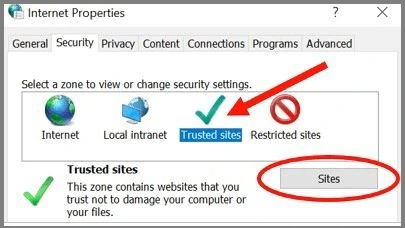
Method 9: Enter Sage.com to Trusted Sites
- Open Internet Explorer, choose Tools, and then click Internet Options.
- Hit on Trusted Sites.
- Click on the Sites button and then select Add.
- Now add Sage.com, payrollonline.com, and sync.peachtree.com.
- Hit on close option.
- Click on the Apply button and then choose the OK option.
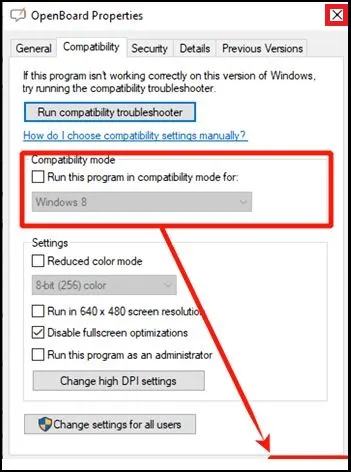
Method 10: Install the Compatible Program on a 64-bit System
- Check the program in the Program Files (X86) directory if you are accessing a 64-bit computer, for instance: PROGRAMPATH=C:\PROGRA~2\Sage\PEACHT~1\.
- If found the wrong path, then you need to uninstall the program.
- Ensure you carefully chosen the preferred program file from the (x86) directory.
Method 11: Rename UserPref.dat
- Rename UserPref.dat, follow.
- If you’re also seeing the error “Assertion Failed: System.IO.FileLoadException: Retrieving the COM class factory for component with CLSID {22743F12-6056-4120-A3FE-98200361EF91} failed due to the following error: 80131040.” after going through the Script Error, refer to Error: “Assertion Failed, Abort, Retry, Ignore” when opening.
What is the Sage 50 script error?
The Sage 50 “An Error Has Occurred in the Script” message appears when Internet Explorer components or system libraries fail to execute required scripts inside the software interface.
What causes script errors in Sage 50?
Several system and configuration issues trigger this error. Here, we will mention some of the major reasons behind this error:
- Misconfigured Internet Explorer settings often disrupt Sage 50’s internal web components.
- Accumulated cache and damaged internet files can block script execution.
- Enabled debugging tools trigger frequent and unnecessary error pop-ups.
- Firewalls or antivirus programs may restrict essential script-related services.
- Broken .NET Framework or Visual C++ installations lead to software instability.
- Using an old Sage 50 version causes compatibility conflicts with Windows updates.
Understanding these causes helps users choose the correct solution and resolve the Sage 50 Script Error faster.
Common symptoms of Sage 50 script error
If you spot these error signs early, it can help you fix the problem quickly and avoid interruptions. Common signs include the given pointers:
- Error Message Popup: You may see a message saying “An error has occurred in the script on this page” while working in Sage 50.
- Slow or Unresponsive Windows: Some modules, reports, or help sections may load slowly or fail to open.
- Problems with Reports: If the reports do not generate properly, you might see blank sections.
- Issues with Online Features: Also, the Sage Drive or other online services may not work as expected.
- After Windows Updates: This error often appears after installing Windows updates that change browser or system settings.
- Script Prompt Options: Along with that, this message may give you options like Yes/No to continue running the script.
Prerequisites before fixing the script error
To fix Sage 50 problems easily, make sure you do a few simple checks to keep the process smooth:
- Log in to Windows with administrator rights so you can make necessary system changes.
- Next, close Sage 50 completely to avoid any background conflicts.
- Also, users should create a backup of their company file to keep data safe.
- In addition, make sure your Windows system is fully updated.
- Check that your internet connection is stable if you use online features.
Best practices to prevent Sage 50 script error
Here are some simple preventive steps to avoid script errors in Sage 50:
- The user should maintain the system properly to reduce script-related problems.
- Moreover, keep Sage 50 and Windows updated with the latest patches.
- Clear temporary Internet files to prevent corrupted data from interfering with scripts.
- Disable script debugging permanently in Internet Explorer to stop unnecessary errors.
- Update Microsoft .NET Framework and Visual C++ packages to ensure scripts run correctly.
- Also, avoid forced system shutdowns to prevent damage to program files or scripts.
Following these steps helps maintain the smooth operation of all browser-based components in Sage 50.
Also Read: How to Fix Sage 50 Running Slow?
Final Words
Fixing the Sage 50 Script Error ‘An Error Has Occurred in the Script’ is essential for maintaining an efficient work flow. By troubleshooting Internet Explorer settings, clearing temporary files, and ensuring your software is updated, you can eliminate these disruptive pop-ups. Following these verified methods ensures your accounting system remains stable and responsive. Maintain these best practices to prevent future script conflicts and enjoy a seamless, error-free experience with Sage 50.
Frequently Asked Questions:
Q1. Can this script error affect company data?
Ans. No, it does not damage company files. It only temporarily interrupts some features in Sage 50.
Q2. Is Internet Explorer necessary for Sage 50?
Ans. Yes, Sage 50 uses Internet Explorer components for certain internal browser-based features, even if you use another browser as the default.
Q3. Can Windows updates trigger this issue?
Ans. Yes, Windows updates can change browser or script settings, which may cause this error.
Q4. Does reinstalling Sage 50 fix the script error?
Ans. Reinstalling Sage 50 is needed only if other troubleshooting steps do not work or if program files are damaged.
How can I prevent this error in the future?
Ans. To prevent it, keep Sage 50 updated, clear temporary Internet files regularly, disable script debugging in Internet Explorer, and make sure Microsoft .NET Framework and Visual C++ packages are up to date.
 ChatGPT
 Perplxicity
 Claude
 Gemini
 Gork
Gork
