
Fix Sage Intacct Sync Error

Integrating Sage Intacct has been designed to make invoicing and payment tracking to be able to run smoothly. However, there is still the potential for running into certain obstacles along the way. In this article, we will find out about some of these commonly occurring error messages you might observe when trying to sync the Sage Intacct, as well as how you can fix Sage Intacct Sync Error.
User Navigation
Accounting Professionals & Specialized Experts
Want quick help from accounting software experts? Get in touch with our team members who can install and configure your software for you. Proficient in fixing technical issues, they can help you quickly get back to work whenever you encounter an error in Sage software. Our team is available 24/7 365 days to assist you. To get in touch.
Also, you need to know that this error message will occur when the user is trying to export a project over to Sage Intacct; however, there is already a project with the same ID in Sage Intacct. As the error message states, you will need to change the ID of your project into something new in order for it to be able to sync accordingly. After changing the ID and saving the required changes, the user should be able to export the project without any further problems. Let us understand a bit more about this error:
Also Read: How to Fix Sage 50 Invoice Errors?
What is the Sage Intacct Sync Error?
- The error triggers a text Sage Intacct Sync Error: This means that the document you are creating has no specified location. Hence you need to specify a location either within the Line Item or in the Financial Account.
- How does the Sage Intacct Sync Error arise?
- When the user is Checking the Accounts within Sage Intacct, that are not accurately set-up and are missing a Location ID.
- When the Invoices Summary frequency has been set to User Specified.
Also Read: How to Invoicing Customers Using Sage 50?
How do I Resolve the Sage Intacct Sync Error?
Now, let us figure out about how to resolve the issue:
Solution 1: Set up a Location ID
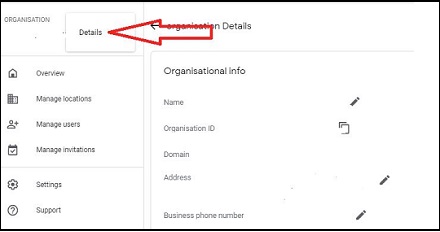
As the main reason for this error is an unspecified Location ID, hence the best method to fix this problem is to set up a Location ID for Checking Accounts. This is how you can do so :-
- Start by Opening the Sage Intacct application.
- Now Login as an Administrator.
- Next Move over to the Applications menu.
- Now, Click on Cash Management here.
- After this you need to move over to the Setup option.
- Next Select the Checking option.
- Click on the Edit option.
- Go to the Location field.
- It is here that you should select the correct location or entity from the offered options.
- Click on the Save option.
- Now Sync it again.
- Repeat the Step 5-9 for all the Checking Accounts.
- Your Location ID will thus be created.
- Finally, Reboot your system.
- Now you can Open Sage Intacct to check if the issue has been solved.
Solution 2: Alter the Frequency of Summary
In order to be able to resolve this issue, you need to change the Invoices Summary frequency to either Daily or Monthly. Follow the steps to do so :-
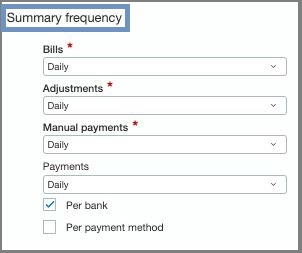
- Start by Opening the Sage Intacct software.
- Next Move over to the Accounts Receivable option.
- Now, Select Configure Accounts Receivable options.
- Next you can Scroll down over to Accounting Settings.
- Go to the Summary Frequency option.
- Next Update the Invoices field to either Daily or Monthly.
- Click on Save.
- Sync once again.
- Now, Restart your system.
- Finally you can now open the Sage Intacct application inorder to check if the issue has been resolved.
How to Fix Common Sage Intacct Sync Errors with BILL Integration?
Fix Sage intacct sync error: chart of accounts aren’t syncing
See below for multiple options to resolve the issue with the Chart of Accounts not syncing from Sage Intacct.
- Verify that BILL has the correct Company ID input:
- In Sage Intacct, check your Company ID:
- Go to Company > Company Info
- Find the Company ID in the ID field
- In BILL:
- Go to Settings
- Click Status under Sync & Integrations
- Select Login Info
- Review the entered Company ID
- Update it if incorrect
- In Sage Intacct, check your Company ID:
- For Multi-Entity setups, the fix depends on where the Chart of Accounts is maintained.
- Chart of Accounts maintained at the Root Level:
- The sync user must exist at the Root Level
- If the sync user is at the Entity Level, delete and recreate it at the Root Level
- Chart of Accounts maintained at the Entity Level:
- Check the Entity ID in BILL under Login Info
- To find the Entity ID in Sage Intacct:
- Go to Companies > Entities
- Look for the Entity ID column
- Identify the correct Entity ID for the BILL sync
- The sync user may still be created at the Root Level, even if syncing with an Entity.
- Make sure the sync user has the required permissions in Sage Intacct.
- Run the sync again after checking and updating the above settings.
Sage intacct sync error: Intacct user authentication failure
This error usually means the login information is incorrect.
Step 1: Reenter Sage Intacct Login in BILL
- Go to Settings
- Under Sync & Integrations, select Setup
- Click Login Info
- Select Edit
- Enter Sage Intacct Admin Login credentials
- Click Save
Step 2: Check Web Services Only Setting
Web Services Only must be enabled for the sync user in Sage Intacct.
To enable it:
- Go to Company > Users
- Click Edit next to the sync user
- Enable Web Services Only
Step 3: Web Services Only Already Enabled
If Web Services Only is enabled and two-step verification is off, but the error continues:
Reset the Sync User Password:
- Reset the password for the sync user in Sage Intacct.
- Enter the new login credentials in BILL under Login Info
Step 4: Check Entity ID
- For Single-Entity Accounts:
- Edit the login info in BILL
- Remove the Entity ID (not required)
- For Multi-Entity Accounts (Entity-Level Sync):
- Go to Company > Entities in Sage Intacct
- Confirm the correct Entity ID
- Reenter the Entity ID in BILL
- Click Save
Refer to the sync setup guide that matches your Sage Intacct configuration for detailed steps.
Sage intacct sync error: Smart rule errors
- When a record or transaction doesn’t follow a Sage Intacct Smart Rule, this error happens.
- If neither option is possible, the record or transaction will not sync.
- Example error:
- “Smart rule vendor_creation was violated. This record needs to be created at the top level. Please navigate to the correct level and recreate the record.”
- This typically occurs when using the BILL Sage Intacct multi-entity sync.
- Although the BILL account is configured to sync at the entity level, the sync is prevented by a Smart Rule that is applied at the top level.
- To fix this error:
- Clear the sync error in BILL
- In Sage Intacct, create the record at the top level.
- Sync again to BILL
- Merge duplicate records if needed
Sage intacct sync error: “Please try syncing again. If this problem persists for more than 3 hours, please contact Customer Support
To resolve this error, disconnect and reconnect the sync.
Disconnect the sync:
- Go to Settings
- Click Setup under Sync & Integrations
- Select Disconnect
Reconnect the sync:
- Go back to Settings
- Click Setup under Sync & Integrations
- Select Connect
- In the popup window, click Continue
Enter the required Sage Intacct login information:
- Company ID
- Username: Use the XML_BILL user
- Password: Refer to the email sent when the XML_BILL user was created
- Entity ID: Enter this only for multi-entity setups. Leave it blank for single-entity accounts.
Important: Use the same login details used during the original sync setup.
Never change the entity or sync level without help. This may cause sync errors or duplicate data.
- Click Save to complete the process.
- If the error continues for more than 3 hours, contact BILL Support.
Also Read: Sage 50 Invoice Numbering
Final Words
So, there you have it people, here are some of the aspects regarding the Decoding the Sage Intacct Sync Error. However if you still continue to encounter further problems with the same, be sure to visit us at accountingadvice.co and you are sure to have your doubts resolved.
Frequently Asked Questions:
Why Does the Sync Error Occur?
Once you select a project dimension within a bill, that project should be associated with the customer dimension that you have selected at the line item level, within Sage Intacct, or this error will occur all over again.
How to Fix the Sync Error?
With In the Sage Intacct, you need to associate the selected customer over to the selected job/project. For this you need to enter a Begin Date that is before the date of the bill, and sync. Likewise, you also need to edit the bill and select a customer and job that have been previously associated within Sage Intacct and sync all over again.
What is meant by the Sage Intacct Sync Error?
This implies that the document you are trying to create has no specified location. For this you need to Specify a location either within the Line Item or within the Financial Account.

 ChatGPT
 Perplxicity
 Claude
 Gemini
 Gork
Gork
